
How to Create a CV on BINUS Career
Last Updated : 27 August 2026 21:53-
![BINUS @Greater Jakarta]() BINUS @Greater Jakarta
BINUS @Greater Jakarta
-
![BINUS @Bandung]() BINUS @Bandung
BINUS @Bandung
-
![BINUS @Malang]() BINUS @Malang
BINUS @Malang
-
![BINUS @Semarang]() BINUS @Semarang
BINUS @Semarang
-
![BINUS @Bekasi]() BINUS @Bekasi
BINUS @Bekasi
-
![BINUS @Senayan]() BINUS @Senayan
BINUS @Senayan




- ASO School of Engineering
- Binus Business School
- Doctor
- International Undergraduate
- Master
- Online Collaboration S1
- Online Master
- Online Undergraduate
- Regular Collaboration S1
- Regular Profession
- Undergraduate
- Undergraduate (Bandung)
- Undergraduate (Malang)
- Undergraduate (Medan)
- Undergraduate (Semarang)
If you are a BINUS University student or alumnus looking to create a CV online, binuscareer.com provides a user-friendly platform to help you build your professional resume. Follow the steps below to create your CV through BINUS Career:
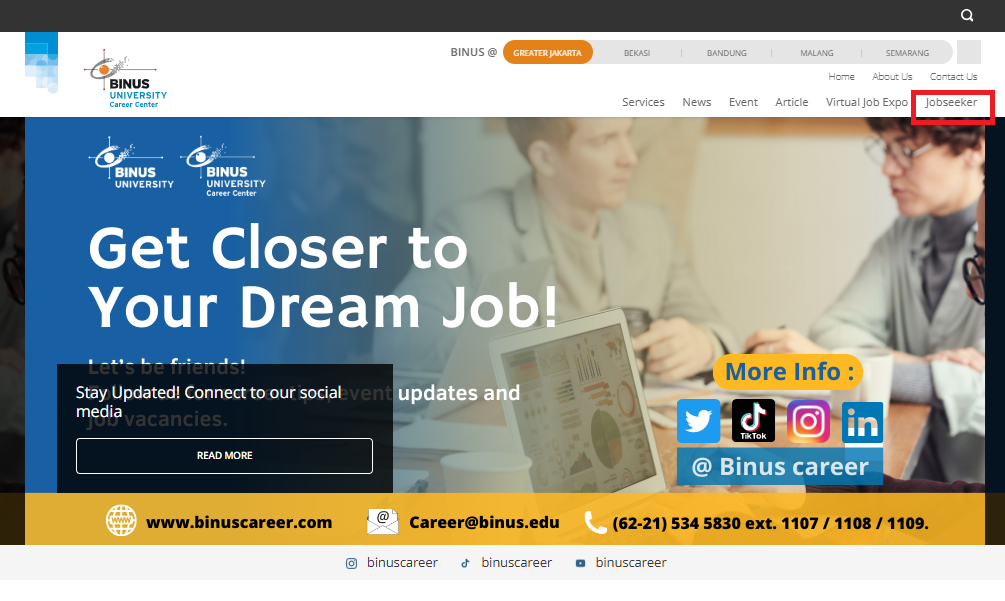
Step 1: Visit BINUS Career
Open binuscareer.com in your web browser. Once the website loads, select the Jobseeker menu to begin the CV creation process.
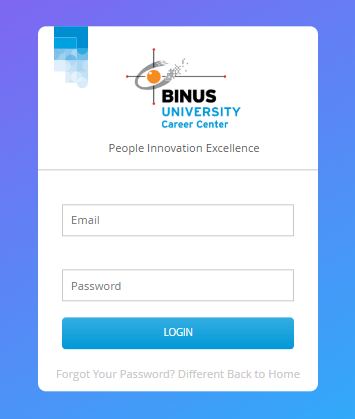
Step 2: Log In to Your Account
To continue, log in using your binus.ac.id account (for active students) or your BINUS Alumni App account (for alumni). For regular undergraduate students, access to BINUS Career is available after enrollment in the Thesis/Final Project course.
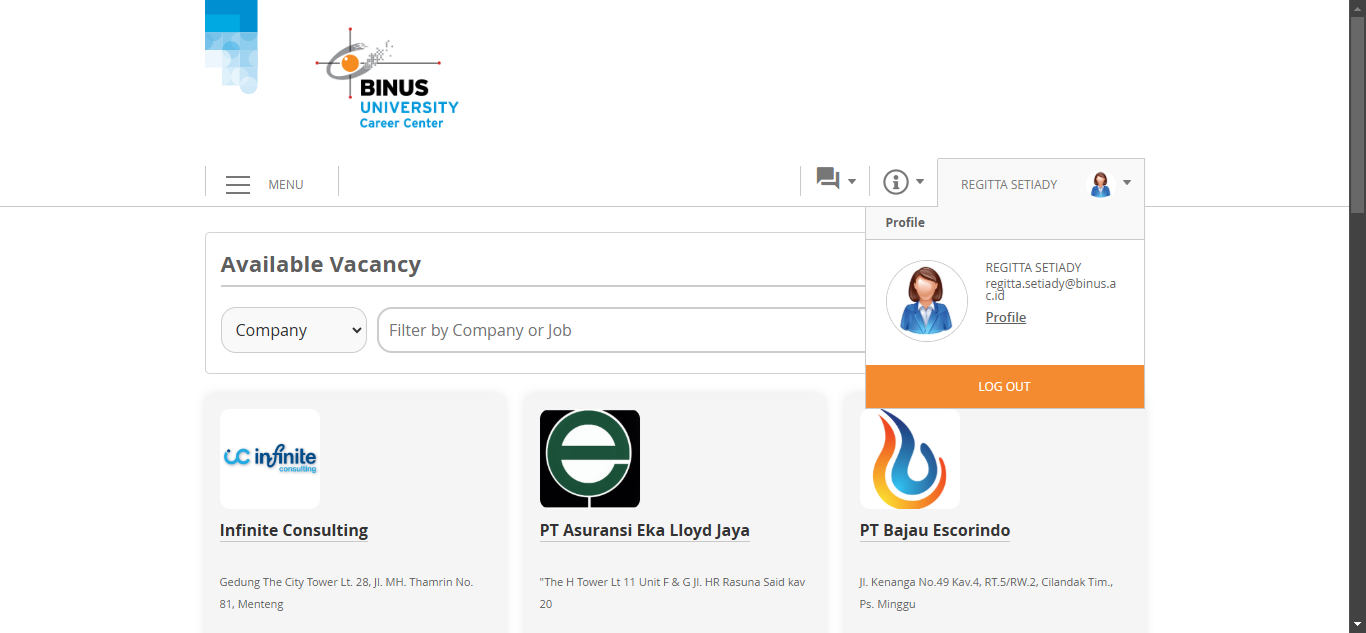
Step 3: Access Your Profile
After logging in, click your name located in the top-right corner of the page, then select Profile from the dropdown menu.
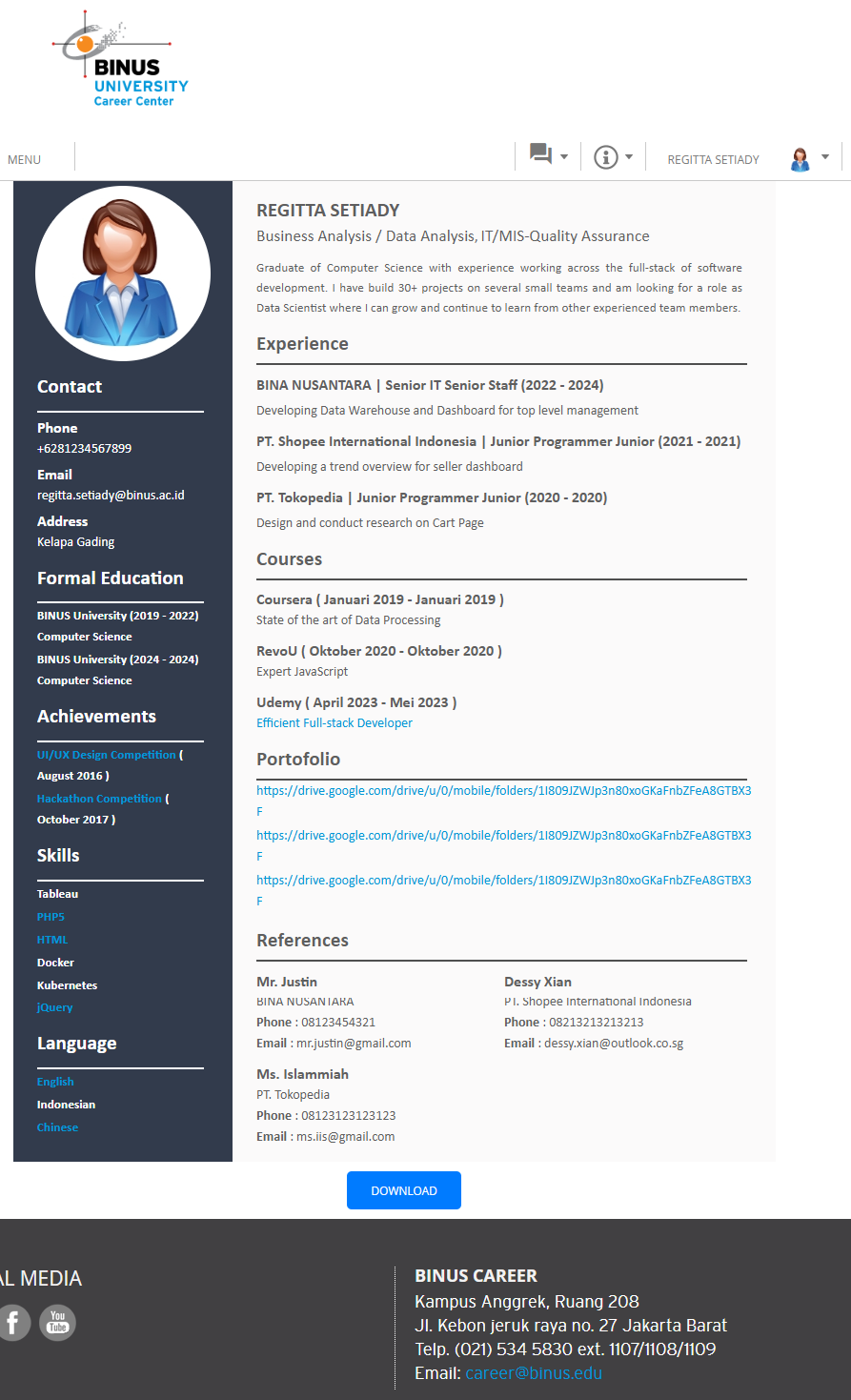
Step 4: Complete All Profile Sections
On the Profile page, fill in the information required in each available section:
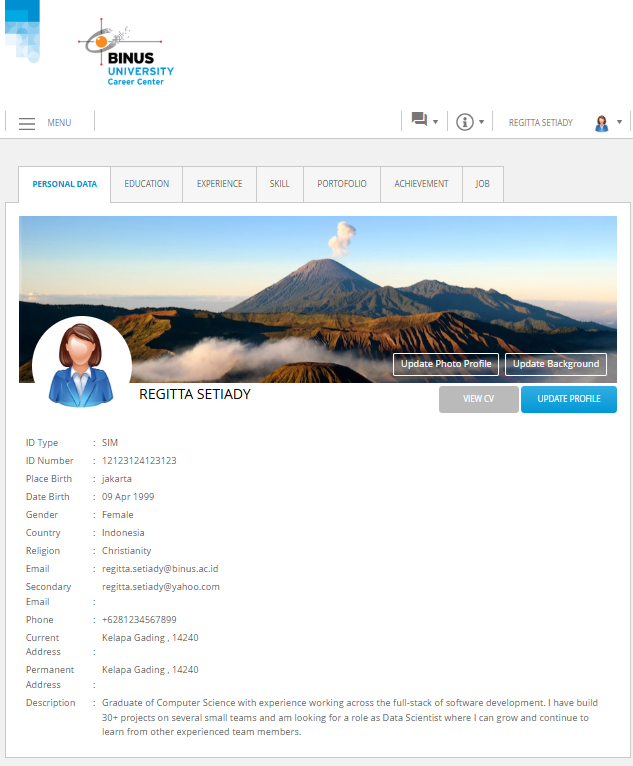
- Personal Data & Profile Photo – Enter your personal information and upload a professional profile photo.
- Education – Provide details of your educational background.
- Experience – Add your work experience, internships, or other relevant professional experiences.
- Skills – List your key skills and competencies.
- Portfolio – Upload or attach your portfolio, if applicable.
- Achievements – Include any awards, certifications, or accomplishments you have received (optional).
- Job Preferences – Specify your desired job-related information and career interests (optional).
You may update your personal information and profile photo at any time by clicking the Update Personal Data and Update Photo Profile links.
Step 5: Download Your CV
Once all profile sections have been completed, click Download to generate and download your CV in PDF format.
Login Assistance
If you experience any difficulties logging in to the BINUS Career website, you may contact the BINUS Career team directly at BINUS Anggrek Campus, Room 208, or send an email to career@binus.edu for assistance.