


Multi-Factor Authentication (MFA) Activation Guide
Last Updated : 20 August 2026 17:03-
![BINUS @Greater Jakarta]() BINUS @Greater Jakarta
BINUS @Greater Jakarta
-
![BINUS @Bandung]() BINUS @Bandung
BINUS @Bandung
-
![BINUS @Malang]() BINUS @Malang
BINUS @Malang
-
![BINUS @Semarang]() BINUS @Semarang
BINUS @Semarang
-
![BINUS @Medan]() BINUS @Medan
BINUS @Medan
-
![BINUS @Bekasi]() BINUS @Bekasi
BINUS @Bekasi
-
![BINUS @Senayan]() BINUS @Senayan
BINUS @Senayan







- ASO School of Engineering
- Binus Business School
- Doctor
- International Undergraduate
- Master
- Non Degree
- Online Collaboration S1
- Online Master
- Online Undergraduate
- Regular Collaboration S1
- Regular Profession
- Undergraduate
- Undergraduate (Bandung)
- Undergraduate (Malang)
- Undergraduate (Semarang)
Protect Your Account with Multi-Factor Authentication (MFA)
Multi-Factor Authentication (MFA) is an added layer of security to ensure your account stays protected. With MFA, in addition to your password, you’ll be asked to verify your identity using another method—such as a code from an app or other verification methods.
Why Is MFA Important?
MFA helps protect your account from various security threats, such as:
-
Phishing: Scammers trying to steal your password.
-
Data Breaches: Hackers stealing data from company databases.
-
Brute-Force Attacks: Programs trying all possible password combinations to access your account.
According to the Microsoft Security Blog, MFA can prevent more than 99.9% of account compromise attacks.
Steps to Activate MFA
Initial Preparation:
-
Ensure you have the Microsoft Authenticator app installed on your iOS/Android device.
-
Access the MFA Setup page using a computer.
Activation Procedure:
-
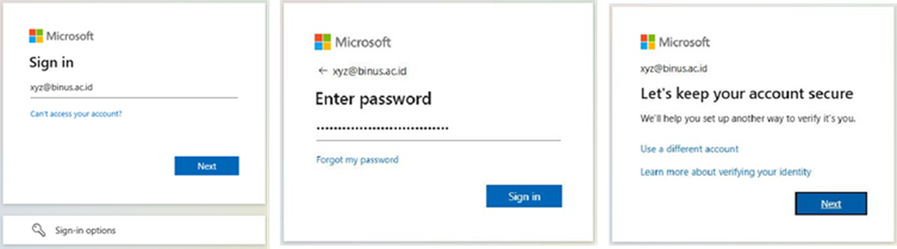
Sign in to your account on the setup page, then click Next. Enter your password, and you will be directed to a page indicating that Multi-Factor Authentication (MFA) has been enabled by your administrator.
-
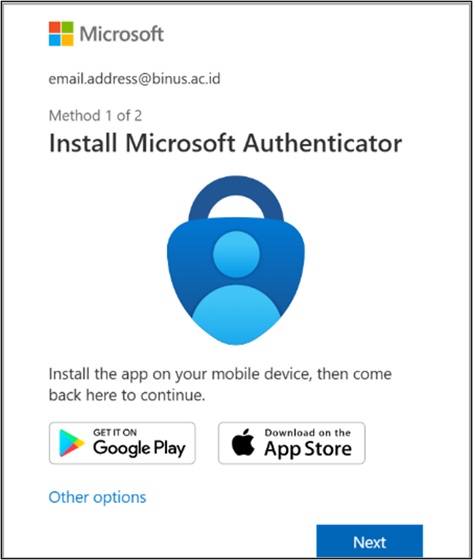
Ensure that the Microsoft Authenticator application is installed on your mobile device, then click Next.
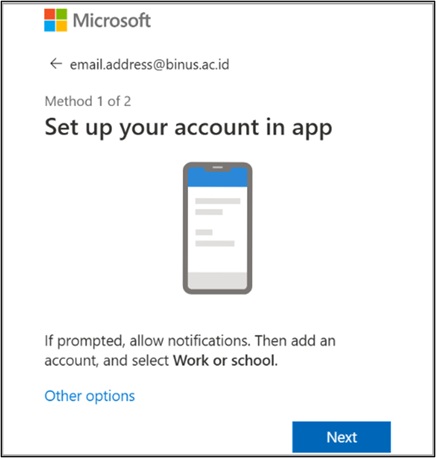
- On your mobile device, allow notifications if prompted. Tap the “+” icon to add an account, then select “Work or school account”.
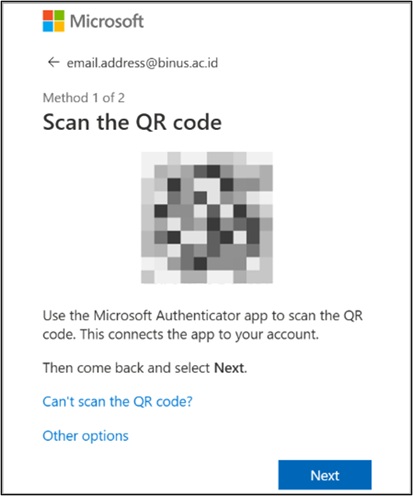
- Using your mobile device, scan the QR code displayed on your computer screen.
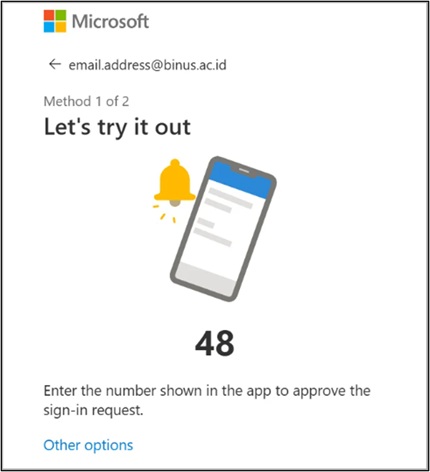
- Enter the number shown on your mobile device to complete the verification process.
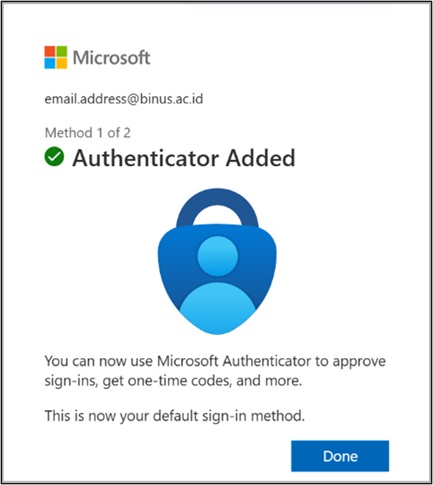
- Your account is now linked to the Microsoft Authenticator application. Click Next to continue.
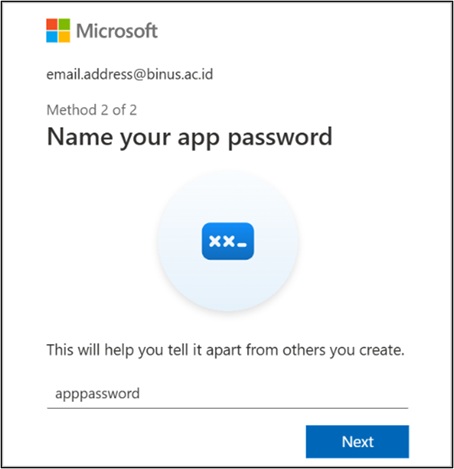
- Enter a name for your app password.
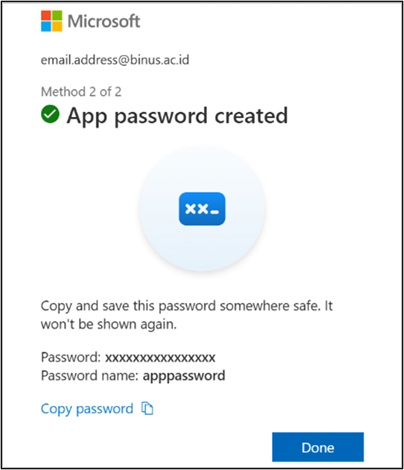
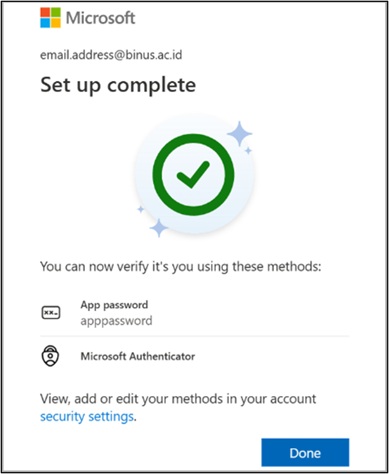
- Your app password has been successfully created. Click Done to proceed to the final step.
- Click Done once again to complete the MFA registration process.
Do’s & Don’t Guidelines
To learn about the recommended practices and actions to avoid when using MFA, please access the following link Microsoft Authenticator Do & Don’t
MFA Verification Methods
-
Microsoft Authenticator App (required)
MFA Frequently Asked Questions (FAQ)
-
Where Can I Access the MFA Activation Guide?
You can access the guide via this link: https://bit.ly/4kHZUKG -
What If I Encounter Issues with MFA?
-
For active students: Contact BINUS Support based on your region.
-
For faculty members: Contact the Lecturer Services Center.
-
For alumni: Contact the Alumni Relations Office.
-
-
How Many Devices Can Be Linked to One MFA Account?
-
Up to 5 devices for the Authenticator App.
-
-
What Should I Do If I Leave My Phone Behind?
-
For active students: Contact BINUS Support in your region.
-
For faculty: Contact the Lecturer Services Center.
-
-
Is There Any Additional Cost for Using MFA?
-
No, there are no additional fees for enabling MFA.
-
-
How Many Accounts Can Be Added to One Authenticator App?
-
Up to 100 accounts, according to Microsoft confirmation.
-
-
What Are the Requirements for Using MFA?
-
You must complete the Security Info section.
-
If it hasn’t been completed, a prompt will appear during login to guide you.
-